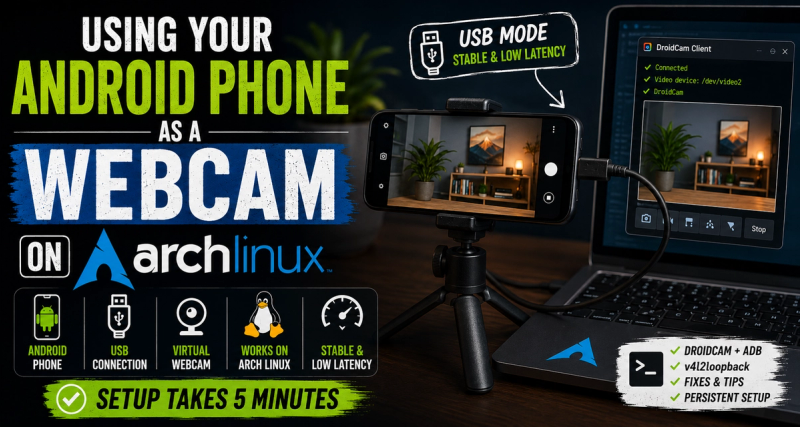

My laptop's built-in camera stopped working. It does not even show up in lsusb. The kernel has no idea it exists. After checking BIOS settings, kernel modules, and ACPI tables, I concluded it was a hardware issue, probably a disconnected ribbon cable inside.
But I had a video call coming up. So I did the next reasonable thing. I used my phone.
The Tool: DroidCam
DroidCam is a client-server app. The server runs on your phone, the client runs on your PC. It creates a virtual video device that apps like Zoom, Discord, and OBS can use just like a regular webcam.
It works over WiFi or USB. USB is more stable and has lower latency, so that is what I went with.
Setting It Up
Install DroidCam on your PC:
yay -S droidcamInstall the app on your phone:
Get the DroidCam app from the Play Store. The free version works fine for calls and basic use.
Install the kernel module:
DroidCam needs v4l2loopback to create a virtual video device. If you are on a custom kernel (like linux-zen or linux-cachyos), make sure you have the matching headers first:
yay -S linux-zen-headers
yay -S v4l2loopback-dkms
Then load it:
sudo modprobe v4l2loopback video_nr=2 card_label="DroidCam" exclusive_caps=1Enable USB Debugging on your phone:
Go to Settings → About Phone, tap Build Number seven times to unlock Developer Options, then go to Developer Options and turn on USB Debugging.
Install ADB:
yay -S android-toolsConnect your phone via USB. Your phone will ask you to authorize the PC, tap Allow.
Start the connection:
droidcam-cli adb 4747That is it. Your phone camera is now /dev/video2. Any app that asks for a camera will see "DroidCam" in the device list.
One Thing That Tripped Me Up
After loading the module and running the CLI, I got this:
error: write() failed for video deviceThe fix was simple — reload the module and reset the device permissions:
sudo modprobe -r v4l2loopback
sudo modprobe v4l2loopback video_nr=2 card_label="DroidCam" exclusive_caps=1
Running those two commands in order cleared it. The module sometimes needs a clean reload, especially if you loaded it earlier without the right parameters.
Making It Persist
If you want the module to load automatically on boot:
echo "v4l2loopback" | sudo tee /etc/modules-load.d/droidcam.conf
echo 'options v4l2loopback video_nr=2 card_label="DroidCam" exclusive_caps=1' | sudo tee /etc/modprobe.d/droidcam.conf
Why USB Instead of WiFi
WiFi works, but USB is noticeably more stable. No frame drops, no reconnection issues if your network hiccups. If your phone supports it, just use the cable.
The only requirement is USB Debugging enabled and ADB installed. Once you plug in and run the CLI command, it connects in under a second.
Final Thoughts
I did not expect this to work as cleanly as it did. The image quality from a modern phone camera is honestly better than most built-in laptop webcams anyway. The setup takes maybe five minutes total. It should also work in IPhone, but I haven't tried that.
If your webcam is broken, missing, or just not cooperating with Linux, this is a practical workaround that actually holds up in real use.